
Ready to sell. In a minute.
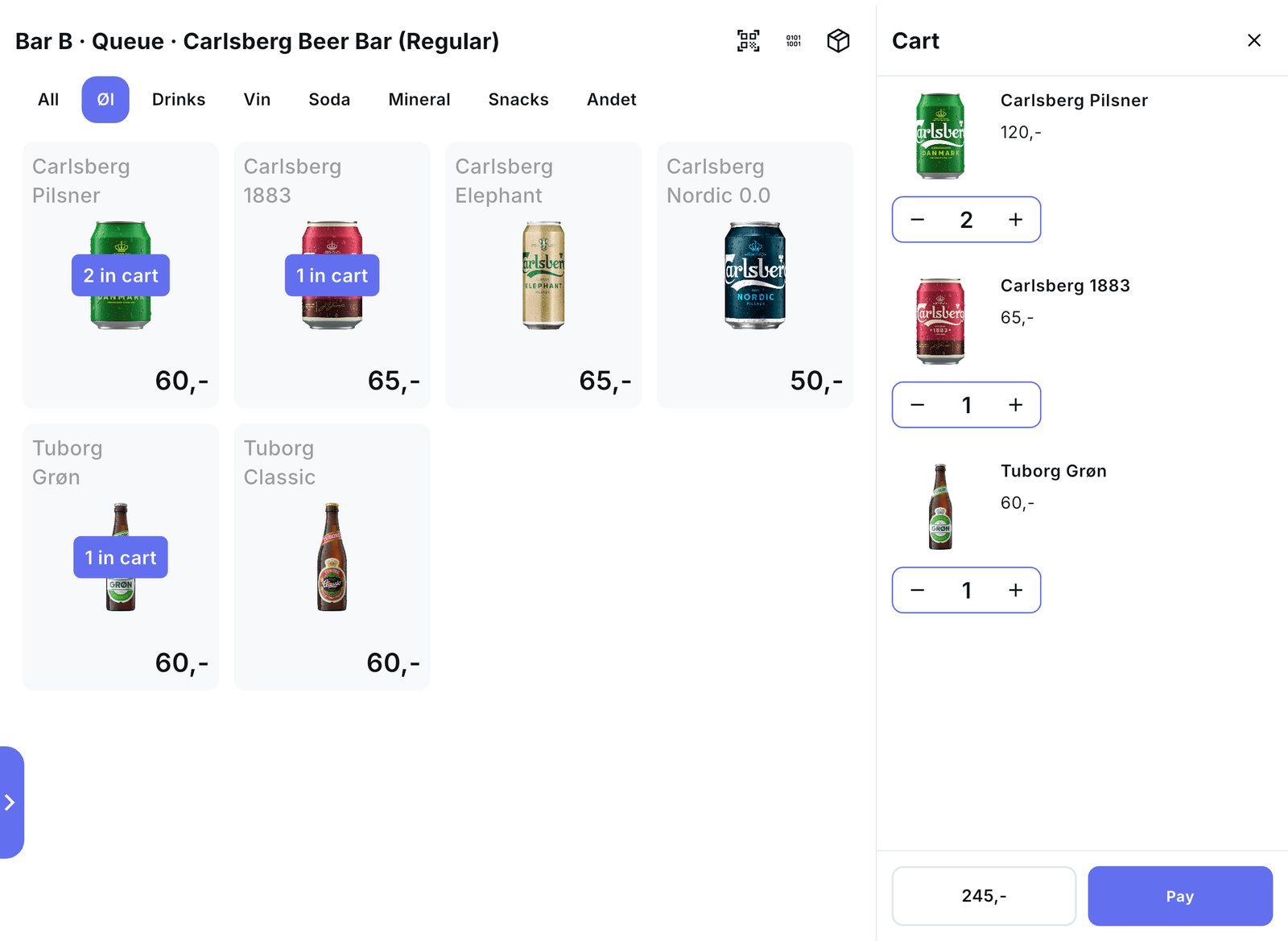
A short tour gets new staff selling on their first shift. Big tiles, cash and card on one screen, and receipts by QR, SMS or e-mail.
No training session before the doors open.
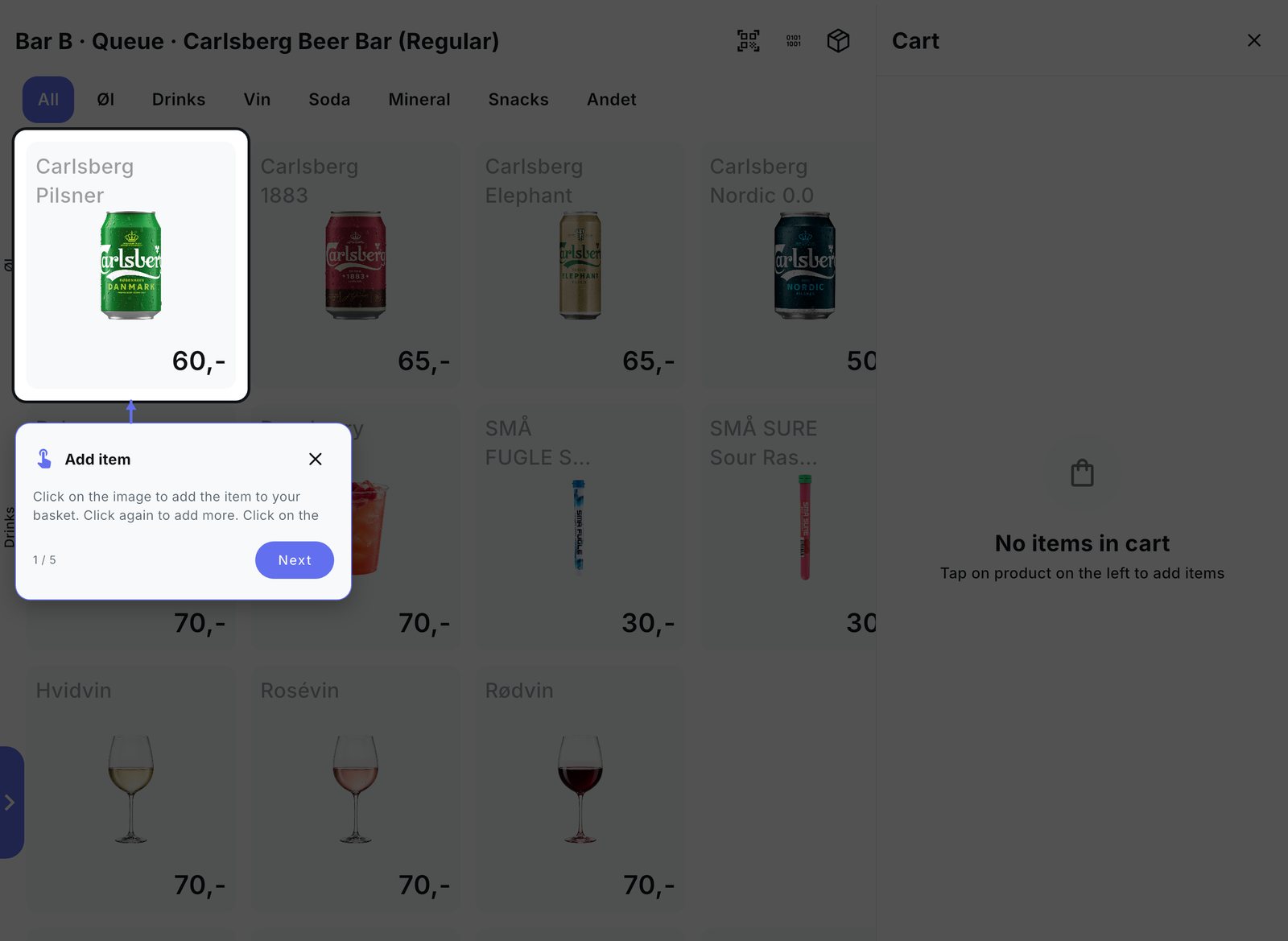
The first time a cashier opens the till, a five-step tour points at the real buttons: add an item, change the amount, open the details, see the extras and check the total. Then they sell.
Big tiles for a busy bar.
The whole menu as picture tiles with prices, easy to hit with wet hands and a queue in front. Tap a tile and it is in the basket, with the total always in view.
Cash or card. The change is on screen.
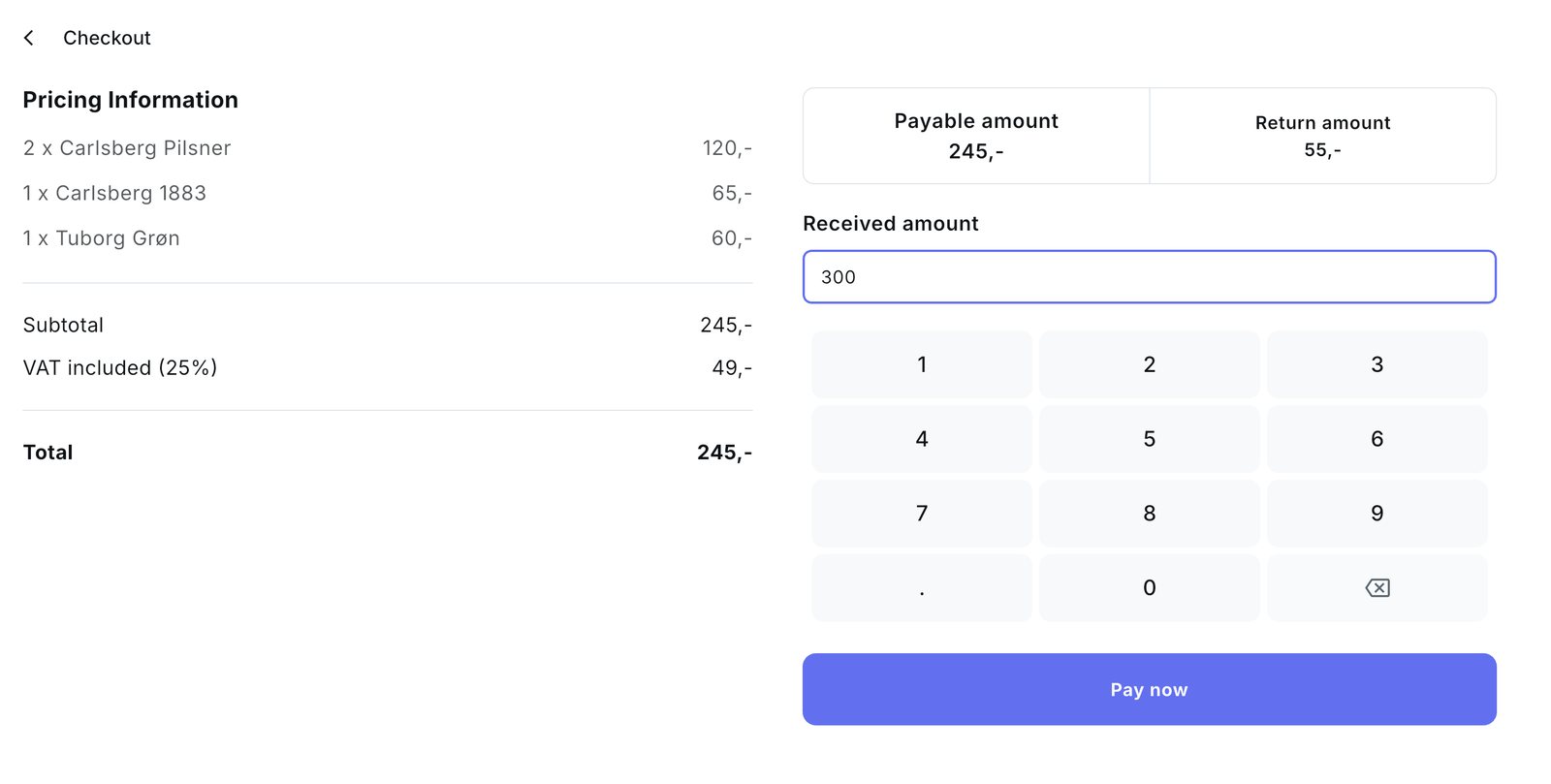
Choose card on the payment terminal or cash. For cash, type what the customer hands over and the change to give back appears at once.
- Card on the terminal or cash, from one screen
- A large keypad for the amount received
- The order and the VAT next to the keypad
No paper roll. The receipt goes to their phone.
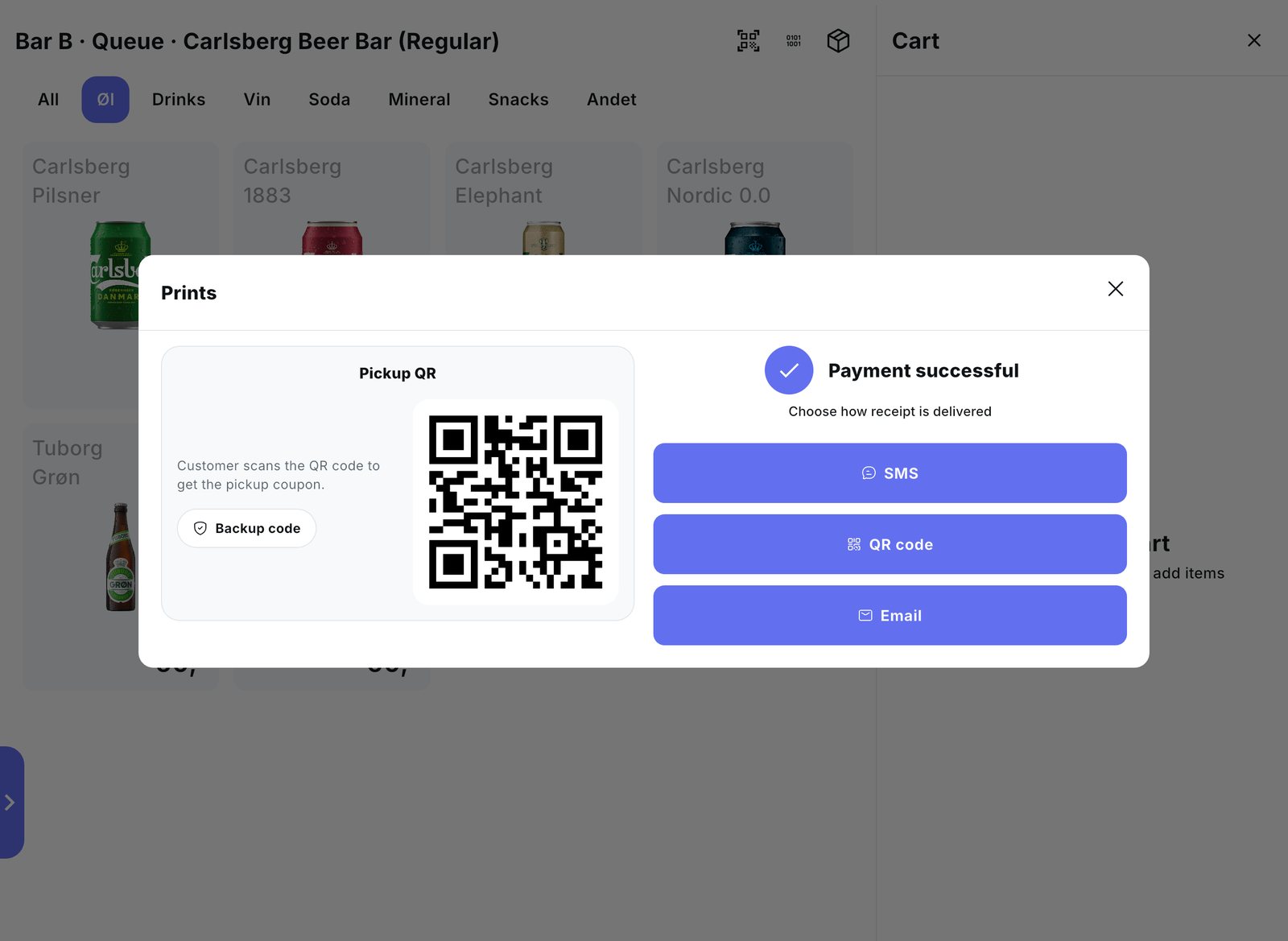
After payment the customer gets a pickup code for the bar and a receipt the way they like it: a QR code to scan, an SMS or an e-mail.
- A pickup QR code for every order
- An 8-digit backup code if the camera fails
- The app checks the customer got the receipt
Every order packed tray by tray.
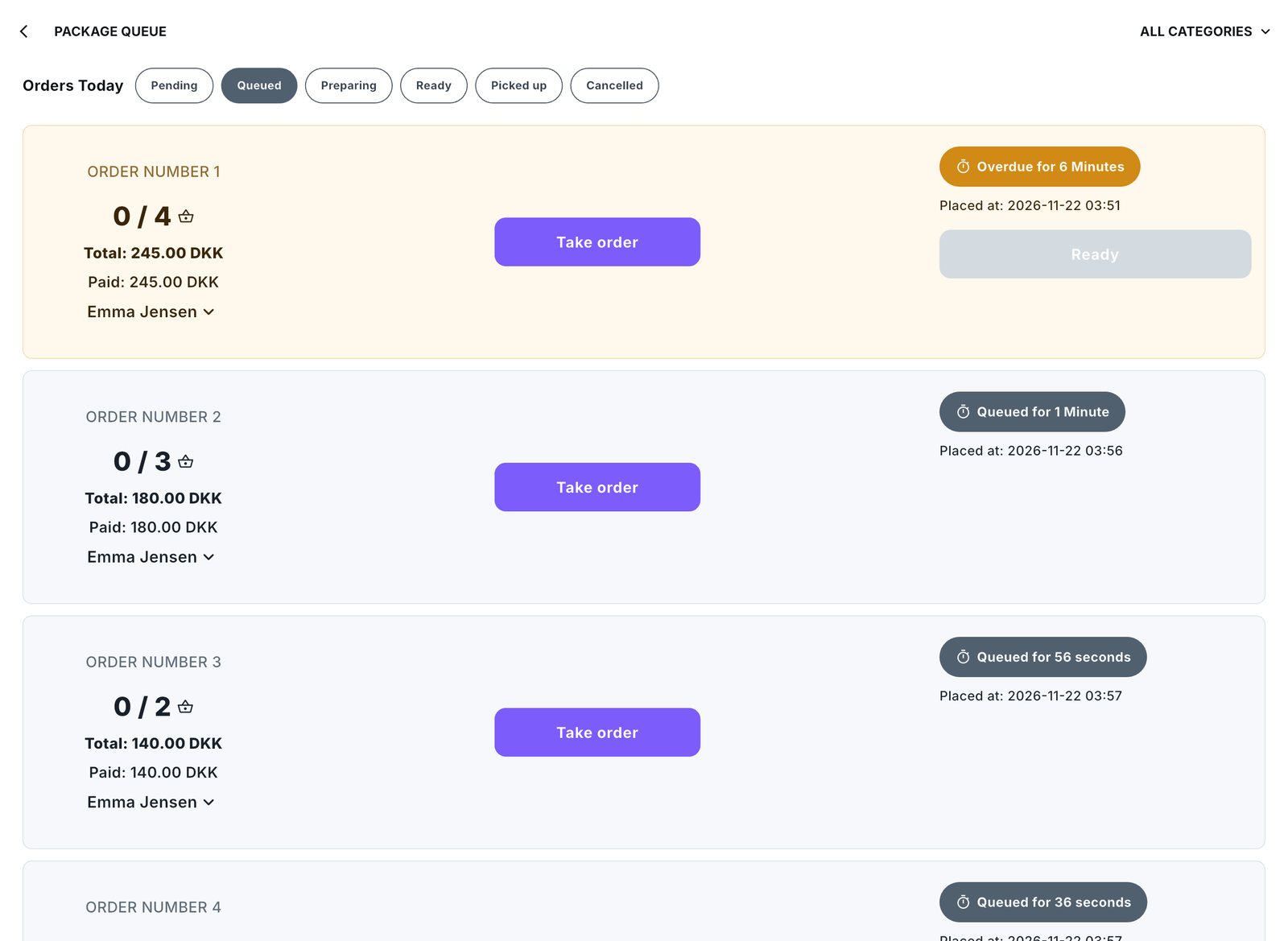
Paid orders land in the queue at once. Staff take an order, pick a tray and tap each item in. The customer collects with their code, and late orders turn orange before anyone complains.
Set up every till from one place.
Products, menus, orders, payments, reports and devices sit in the admin, so every till shows the same thing.
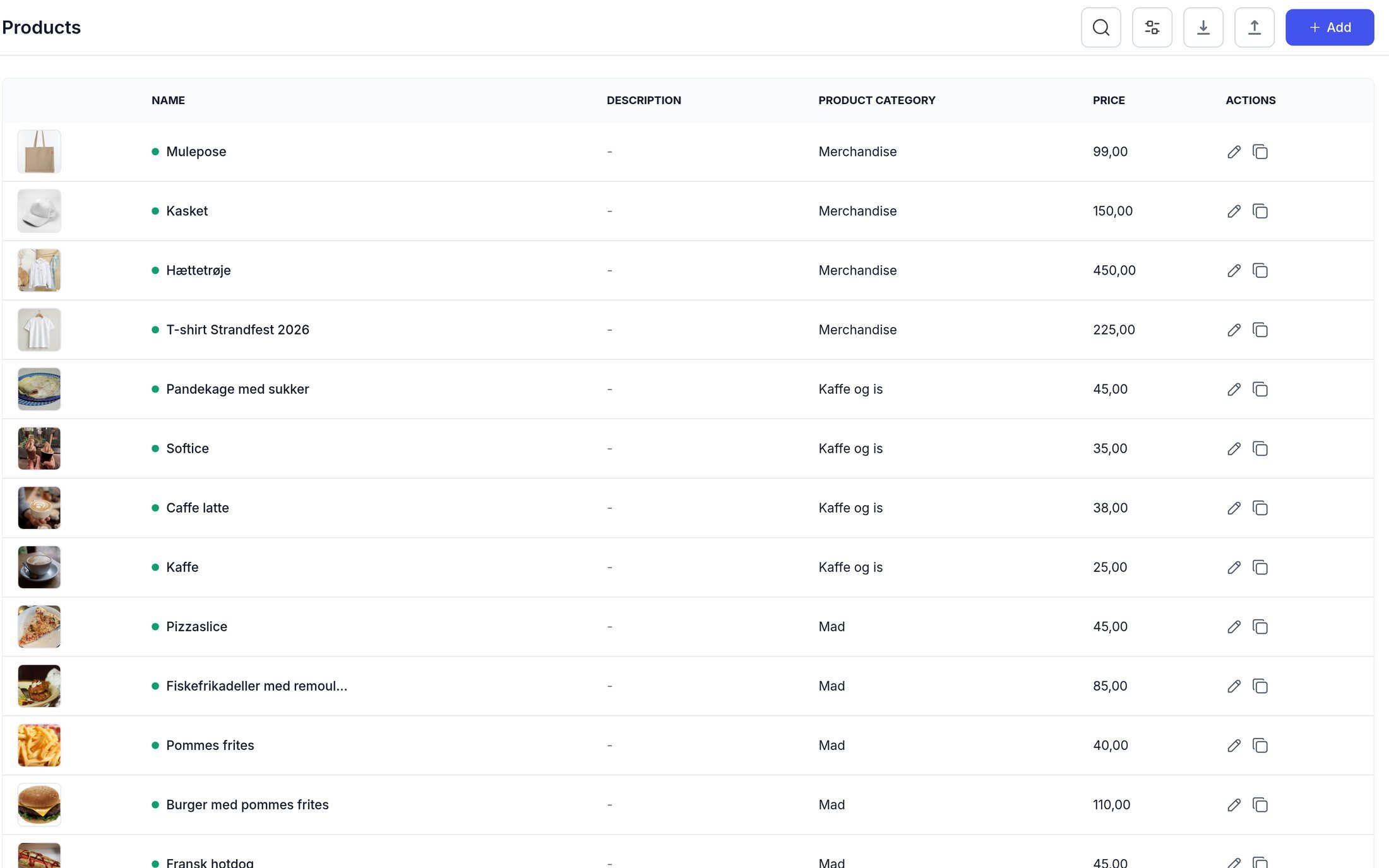
Every product with its photo and price.
Photos, prices, categories and stock in one list. Change a price here and every till shows it.
- Stock and barcodes per product
- Deposits that follow the drink
- Import and export the whole list
What people ask about the point of sale.
Which devices does it run on?
The POS app runs on iPads, Android tablets and phones. Card payments go through a payment terminal at the till.
How long does it take to train a new cashier?
About a minute. A five-step tour points at the real buttons the first time they open the till.
Do customers need a paper receipt?
No. They scan a QR code, or get the receipt by SMS or e-mail.
What if the customer's phone camera does not work?
Every order also has an 8-digit backup code that finds the same order in the queue.
Can several bars share one queue?
Yes. Each station filters the queue to its own categories, so the beer station only sees beer.
Does it work for shops and restaurants too?
Yes. The same till sells drinks at a festival, goods in a shop or food in a restaurant.
See the till with your own menu.
Tell us what you sell. We set up a demo with your products and prices and walk you through it on a tablet.